
The In Symbolics tab, shown in Figure 6.6, allows you to search active files for which the IDE generates and catalogs debugging information in a symbolics file. This section describes how to use the options in the tab. For brief descriptions of each option in the tab, as well as other options, see "Find Options".
The steps presented in this section assume that the IDE generates symbolics information for the files that you wish to search. To learn more about generating this information, see "Generating Symbolics Information".
In Symbolics Tab of Find In Files Window: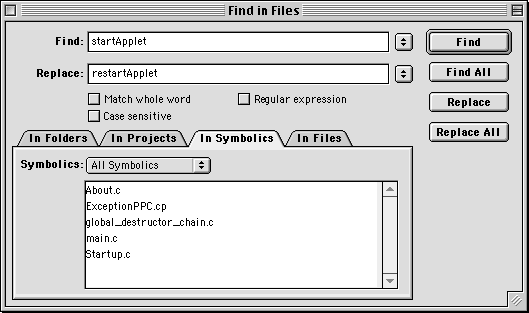
To ensure that the IDE loads the symbolics information, open in the Symbolics window the symbolics files generated for the files that you wish to search. Symbolics files have names that end in .SYM, .xSYM, .iSYM, or .EXE (CodeView). For more information about the Symbolics window, see "Symbolics Window".
To choose specific symbolics information to search, follow these steps:
1. Choose from the Symbolics pop-up menu the files with symbolics information that you wish to search.
2. Edit the file list as desired.
The list at the bottom of the In Symbolics tab shows the files to be searched. This list updates to reflect the files that you chose from the Symbolics pop-up menu. You can select and remove files from the list as desired. You can also open a file by double-clicking its name in the list.
3. Click the Find, Find All, Replace, or Replace All button to perform the desired find or find-and-replace operation.
To continue the search in the next file, choose Search > Find In Next File. To continue the search in the previous file, choose Search > Find In Previous File.
 NOTE
NOTE
Find In Previous File menu command by default. See "Customizing Commands" to learn how to enable the menu command.
For multi-file search operations, a Search Results window appears and shows the search status. You can view individual matches and stop a search in progress. For more information, see "Search Results".
To cancel the find or find-and-replace operation, close the Find in Files window.